WinForms Modernization: A Modern Screen Running Inside the Old App
Industry
Retail
Location
Poland
Platform
Windows desktop, .NET
Cooperation
1+ years
About the project
A lot of companies still run their business on old WinForms apps. The apps work and people know them, but they look dated and are hard to change. Rewriting from scratch is a big, risky project, and most teams can’t stop the product for it.
For this internal project, our engineer took an open-source point-of-sale app built on WinForms and SQL Server. It handles sales, returns, invoices, stock, suppliers, users and printing. We picked one part of it, inventory, and gave it a new, modern screen built with Avalonia. The rest of the app moved to .NET 10 together with it. Most existing screens retained their original UI, with runtime compatibility updates and selected inventory integrations. This case study covers the standalone inventory milestone: a Windows prototype using synthetic data, not a production rollout.
Challenge
When we looked inside, we found several challenges relevant to legacy application modernization:
01
Everything was mixed together
Inventory validation and orchestration were coupled to the forms, while data access was spread across legacy DAL classes. Reusing that behavior in a new UI required clearer boundaries.
02
The code and the database didn’t match
The code saved data to columns the database didn’t have. One search looked for a column that didn’t exist at all.
03
An old platform
The app ran on .NET Framework. We moved to modern .NET for the chosen Avalonia integration and replaced the legacy SQL client with Microsoft.Data.SqlClient.
04
Screens depended on each other in hidden ways
The checkout screen read product data from the stock table by column number. Change that table, and checkout could quietly break.
Solution
Six steps in this prototype
We didn’t start with the new screen. We started with everything the new screen would need, in six small steps. Each increment was checked with builds and the inventory workflow; automated regression coverage grew during the work. Scroll down to see how the app changes at each step.
.NET FrameworkStep 1 of 6
Old screensForm logic and legacy DAL
New screenInside the old app
Separate appNo WinForms
New UI codeWritten once, used twice
Inventory logicTested on its own
Inventory data accessShared repository implementation
SQL ServerDemo schema preserved during migration
OldNew screenShared logic
Step 1
Get the old app running, safely
First we established a runnable baseline, then configured an isolated demo database with synthetic data and safeguards against targeting the original database. We fixed two search defects and verified the inventory workflow before migration.
Step 2
Move the whole app to .NET 10
We moved the app from .NET Framework to .NET 10 for the chosen Avalonia integration. We compared the layout of seven screens and reran the verified inventory workflow against the original build, documenting differences and untested areas.
Step 3
Take the inventory logic out of the screens
A new screen can only reuse the business rules if they don’t live inside the old screens. So we wrote a plan, then moved the inventory rules and database code into two separate libraries.
Step 4
Switch the old screens to the new logic
Before building anything new, we tested the new libraries on the old screens. Stock, Manage Products and the checkout’s product list now use them, and look exactly the same as before.
Step 5
Add a modern screen inside the old app
The new Inventory screen, built with Avalonia, opens from the app’s usual menu, with the same login and the same data. We tried it on a tiny test screen first to catch problems early.
Step 6
Run the same screen on its own
Finally, we ran the same new screen as a separate app, with no WinForms at all. We didn’t have to change anything in the old app to do it.
One new screen, two places to use it
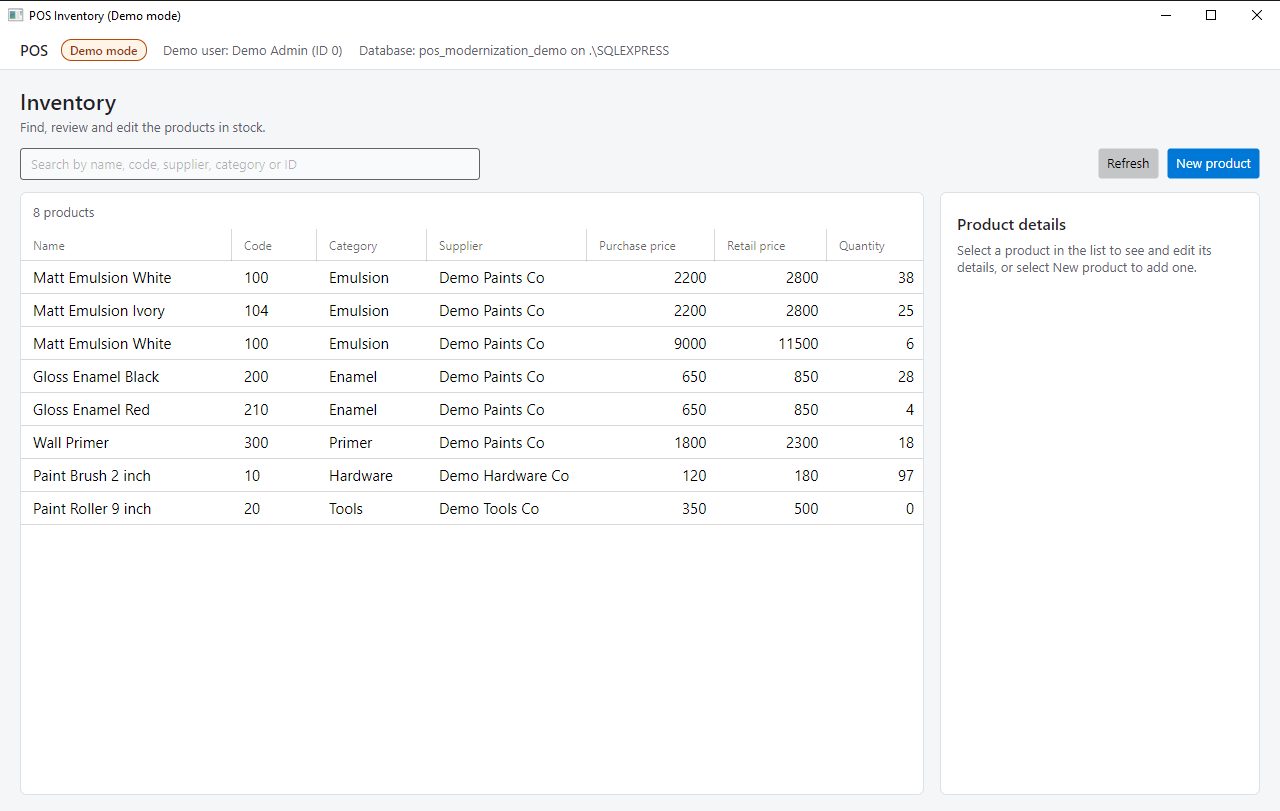
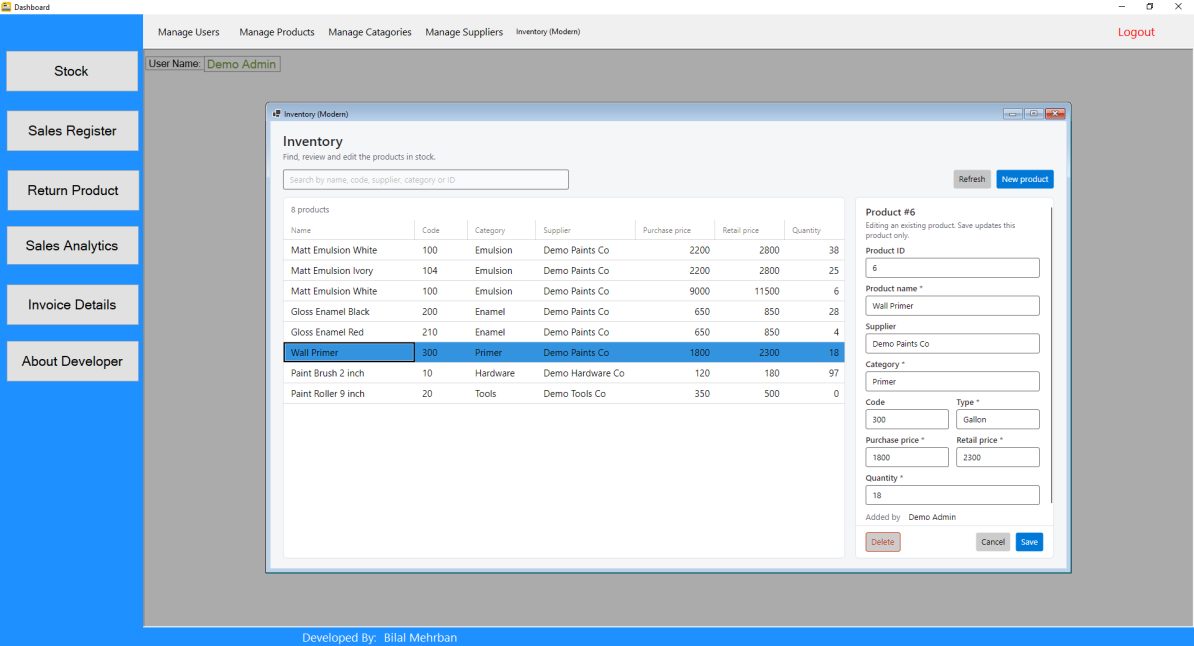
Here is the same product list, before and after. This isn’t a mock-up: the new screen works, in two places, on the same database.
Before · WinFormsAfter · Avalonia
⇆
Drag the slider to compare. Real screenshots with test data.
Inside the old app
Users get the new screen without leaving the app they know
Opens from the usual menu, with the same login
The old Stock and Manage Products screens are still there
Change a product in one screen, refresh the other, and you see the change
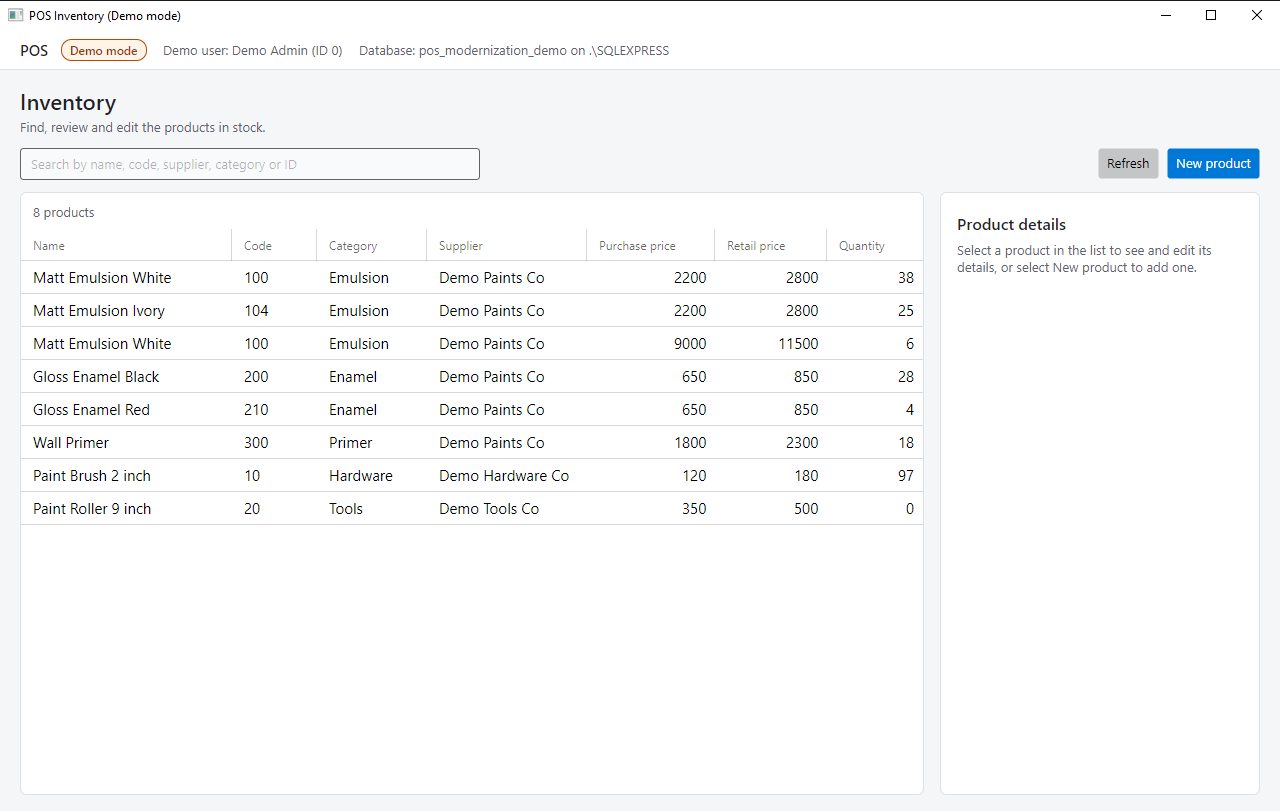
As a separate app
The same screen, no WinForms needed
Starts on its own, with its own settings
Uses a configured demo identity and opens read-only if it cannot be resolved; production authentication and authorization were outside this prototype
Shows a clear message and a Retry button if the database is down
It’s the same code in both places. We wrote the screen once.
The new screen is also harder to get wrong. New and Save are separate buttons. If you leave with unsaved changes, it asks what to do. It never adds a duplicate product without telling you, and if a save might have failed, it checks the database again.
Problems we caught early
In old apps, the real risks hide in details nobody wrote down. We found six of them, early, while they were still easy to fix.
WhereWhat we foundHow we fixed it
Database
The database didn’t match the code
The code saved data to columns that weren’t in the database.
Would have broken: adding and editing products, checkout, and our tests.
We built a separate, scripted demo database with test data, and fixed two search bugs along the way.
Runtime
New .NET changed a few defaults
The new database library wanted an encrypted connection, so login failed. And every window came out about 16% bigger.
Would have broken: login, and how every window looks.
We made connection, font and scaling settings explicit, then checked compatibility and compared the layout of seven screens with the old version.
Data
Prices were stored as text
Prices and quantities were stored as text. Converting them to numeric types would require a separate assessment of their existing representations.
Would have broken: data compatibility if conversion changed existing meanings.
We kept the values exactly as they were and added tests to protect them. Cleaning up the data is a separate job.
Screens
Checkout counted on column numbers
The checkout screen took columns 1, 2, 6, 7 and 8 from the stock table.
Would have broken: checkout, without any error message.
We made the new code return the data in exactly the old shape, so three screens switched over without any redesign.
Embedding
The old app “ate” the keyboard
Inside the old app, Tab, arrows, Enter and Esc didn’t reach the new screen, and its table columns shrank.
Would have broken: a new screen you couldn’t use from the keyboard.
We fixed keyboard handling and set minimum column widths. We caught this on a tiny test screen, before building the real one. A hands-on check with a real keyboard is still to do.
Interaction
Double clicks and slow searches
A slow search could show old results over new ones, and a double click could add the same product twice.
Would have broken: data, without anyone noticing.
Only the latest search is shown, buttons are locked while saving, and duplicates are blocked. During verification, six deliberately introduced faults were detected, with one additional test added during the exercise.
How we worked: AI does the legwork, our engineer makes the calls
Our engineer worked with an AI coding assistant the whole way. The AI read through the old code and wrote changes and tests. The engineer decided what to build, how, and whether the result was good enough.
Engineer
Plan the step
Decides what to do next and what “done” looks like.
AI assistant
Do the work
Reads the old code, writes the change and the tests.
Automated
Check it
Builds the app and runs the relevant automated checks available at that stage.
Engineer
Review it
Looks at the results, fixes the direction, decides what’s out.
Git
Save it
The accepted result is saved, and the next step starts from here.
Then repeat. Small steps mean problems show up fast and stay small.
Technologies
.NET 10
C#
SQL Server
Windows Forms
Avalonia UI
Automated and UI tests
AI coding assistant
Git
PowerShell
Results
We set out to demonstrate an incremental modernization path for one inventory module. The existing screens remained available alongside the modern UI in the prototype. Production rollout and service continuity were not evaluated.
6 steps
Existing inventory screens remained available
We presented the work as six increments, checking builds and inventory behavior along the way. This demonstrated coexistence of old and new screens, not a live migration with production users.
1 screen, 2 places
A modern screen inside the old app, and on its own
The new Inventory screen opens from the old app’s menu and also runs as a separate app, with no WinForms. The embedded module reused the extracted inventory services unchanged. The standalone host reused the same UI with small adaptations for identity, read-only operation and platform shortcuts; it required no changes to the WinForms app.
114 tests
Recorded verification at the inventory milestone
At the standalone inventory milestone, the recorded verification run passed 114 automated tests. Automated UI regression tests began during runtime migration, and unit tests were added during service extraction. During Avalonia module verification, six deliberately introduced faults were detected by the tests, with one additional test added during that exercise.
What this means for a business
Modernize in manageable increments. A bounded module can be delivered and evaluated before the rest of the application is modernized. Production rollout still needs its own plan.
You pay in small parts, not one big bet. Start with the screens that matter most, then decide on the next one.
Something modern to show, early. Users, buyers or investors see a modern screen in the real product long before the whole app is done.
Extracted inventory rules live in one place. Old and new inventory screens use the shared services, reducing duplicated business logic.
A way out of WinForms. The new screen already runs without WinForms and builds for macOS. It hasn’t been run on a Mac yet.
See what we tested, and where
What we tested
Old screen
Inside old app
Separate app
Browse the product list
✓
✓
✓
Search, including quotes in the input
✓
✓
✓
Create, edit, persist across restart
✓
✓
✓
Delete with confirmation
✓
✓
✓
Same data in all three
✓
✓
✓
Unsaved changes: Save, Discard, Keep editing
–
✓
✓
Slow searches, double clicks
✓
tests
tests
Database or settings problems
✓
tests
✓
✓ checked end to end in the running app; tests: covered by automated tests; –: doesn’t apply. Windows 10 at 100% scaling, test data. Checks with a real keyboard, at higher scaling and with a screen reader are still to do. Full sales checkout, returns, invoices, reports, printing and user-management workflows were not verified. The Sale Register product list and search were connected to the shared inventory service; this does not establish checkout correctness. Deployment and production hardening were outside scope.